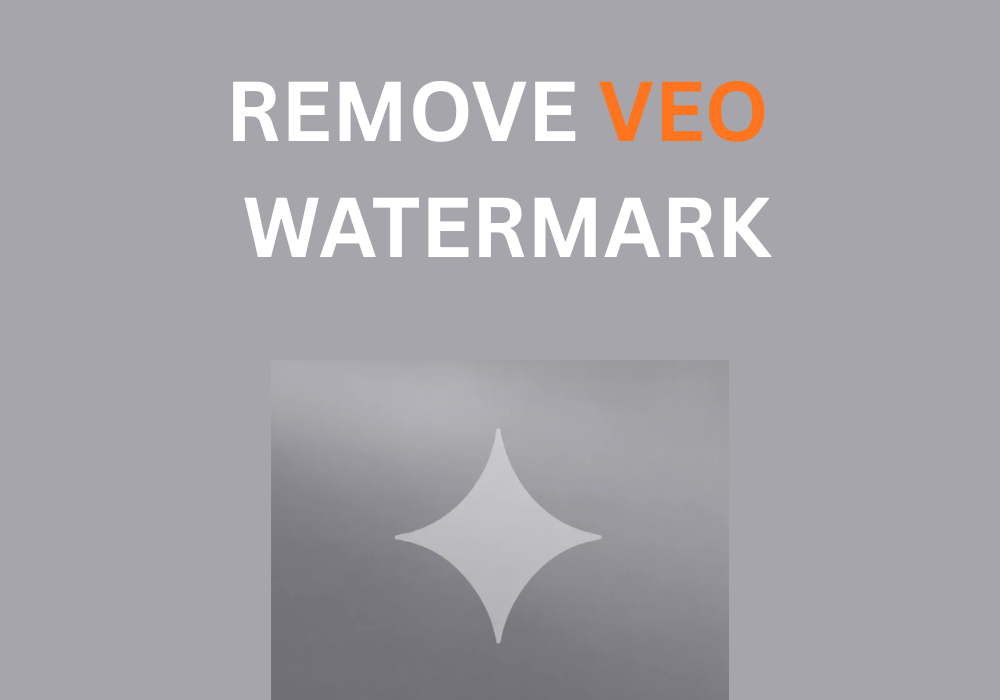
Quick answer: The fastest way to remove the Veo watermark is to upload your clip to an AI video watermark remover. I used Dewatermark, an online AI watermark remover for videos, images, and PDFs. It cleared the Veo logo from a 5-second clip in about 20 seconds, with no editing software and no manual masking.
If you’ve generated a video with Google Veo, through the Gemini app or Flow, you’ve seen the small Veo mark sitting in the corner. It’s fine for a quick share. It’s a problem when the clip is going into a client edit, a product ad, or a reel where every pixel counts.
I tested the AI route on real Veo clips, and I also compared it against the manual methods people usually suggest: cropping and blurring. Here’s what worked, how long it took, and what no tool can remove.
What Is the Veo Watermark?
Every Veo video carries two kinds of watermark, and it helps to know which one you’re dealing with.
The visible Veo logo
This is a small, semi-transparent “Veo” mark, usually in the bottom-right corner. When Google rolled it out in 2025, it said the visible watermark would be added to all Veo videos except those made by Google AI Ultra members in Flow. That’s why the same prompt can give you a clean clip in Flow but a marked one in the Gemini app. When people search for how to “remove the Gemini logo” from a video, this is almost always the mark they mean.
One detail matters a lot here: the Veo logo stays in the same spot for the whole clip. AI removers handle a fixed watermark far better than one that moves around, so Veo clips are close to the ideal case.

The invisible SynthID watermark
Google also embeds SynthID, a watermark you can’t see, directly into the video data. No editor or removal tool on this list touches it, and that’s by design. More on that below.
4 Ways to Remove the Veo Watermark (Comparison)
| Method | Best for | Keeps full frame? | Time for one clip | Cost |
|---|---|---|---|---|
| AI watermark remover (Dewatermark) | Clean, full-frame results fast | Yes | ~20 seconds (5s clip) | 1 credit per second of video |
| Crop the video | Logo near the edge, framing doesn’t matter | No | 2–5 minutes | Free |
| Blur or cover the logo | Quick social posts | Yes, but with a visible patch | 5–10 minutes | Free |
| Generate without it | Ultra plan users in Flow | Yes | No extra step | Paid Google plan |
Method 1: Remove the Veo Watermark with Dewatermark
This is the method I’d recommend for most people. If you want a Veo watermark remover that runs in the browser, keeps your full frame, and doesn’t leave a smudge behind, this is the one to try first.
Dewatermark: AI video watermark remover
Dewatermark is a browser-based AI tool that removes watermarks, logos, and text from videos, images, and PDFs. It detects the watermark, erases it, and rebuilds the background underneath, so the corner looks like it was never covered.
- Works in the browser on desktop and mobile, no install needed
- Handles fixed-position marks like the Veo logo especially well
- Pay-as-you-go: 1 credit per second of video, with free daily credits
- Open the tool. Go to the Dewatermark video watermark remover.
Check: you’ll see an upload area for your video file. - Upload your Veo clip. Drop in the MP4 you downloaded from Gemini or Flow.
Check: the clip previews with the Veo logo still visible. - Let the AI process it. Dewatermark finds the Veo mark and fills in the background behind it. My 5-second clip finished in about 20 seconds.
Check: the processed preview appears without the logo. - Preview, then download. Play the result once before saving it.
Check: watch the bottom-right corner. You shouldn’t see a blur patch, a ghost outline, or flicker.
My Test Results: Dewatermark on a Veo Clip
I generated a short Veo clip in the Gemini app, so it carried the standard visible watermark, and ran it through Dewatermark’s video tool without any manual touch-ups.
| Clip length | 5 seconds |
|---|---|
| Source | Veo video generated in the Gemini app |
| Processing time | About 20 seconds |
| Credits used | 5 (1 per second) |
| Manual masking needed | None |
| Result | Logo gone, corner background matched the scene, no flicker on playback.” |
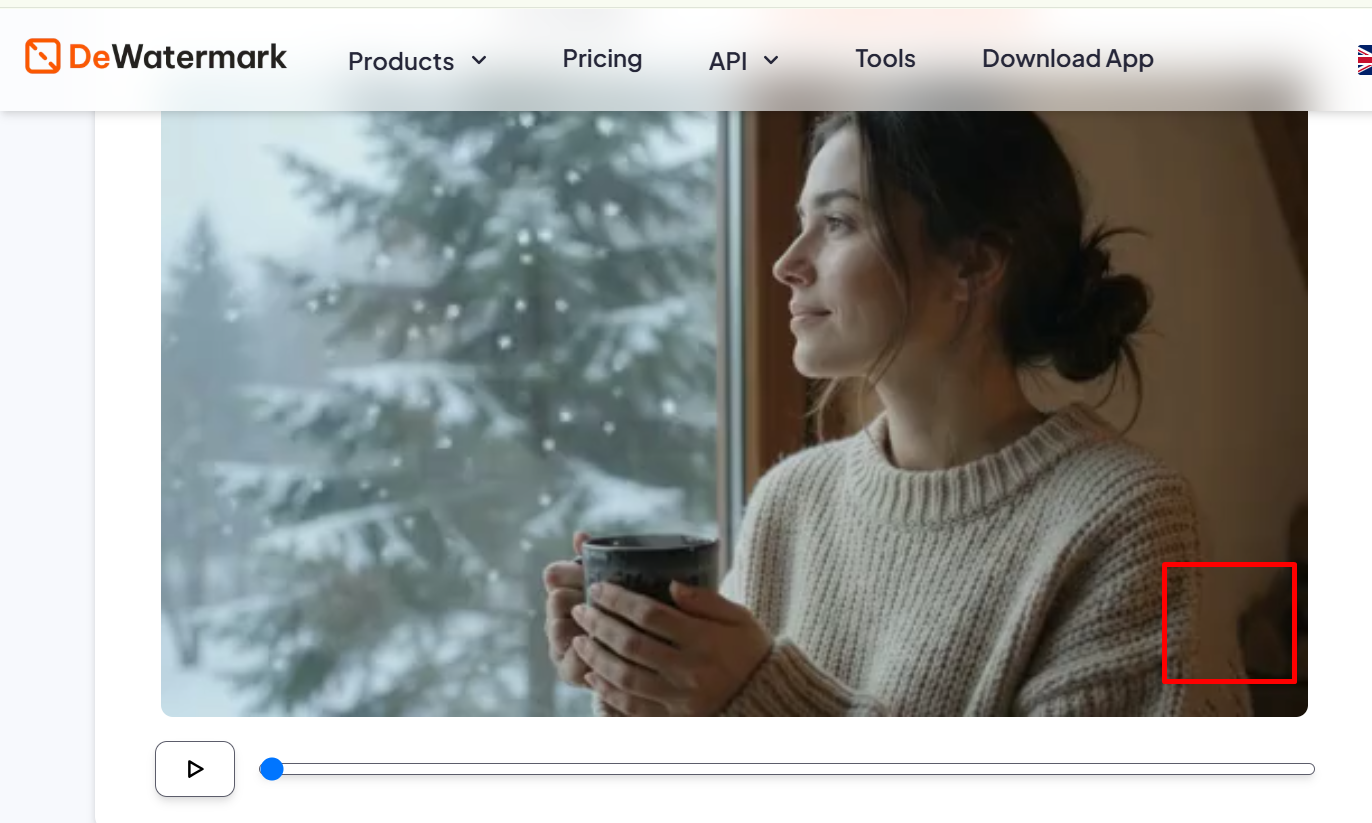
Two things stood out. First, speed: it took longer to download the clip from Gemini than to clean it. Second, the cost is easy to predict. Veo clips are short, so a typical clip costs only a handful of credits.
Where it has limits: results are best when the watermark stays put, which is exactly how Veo places it. If you try the same tool on a different video where a logo drifts across the screen, expect weaker results. Busy textures right behind the logo, such as moving water or crowds, are also harder to rebuild than a sky or a wall, so always preview before you download.
Method 2: Crop the Watermark Out
Because the Veo logo sits near the edge, cropping works. You can do it in CapCut, Premiere Pro, or DaVinci Resolve by pulling the frame edge in until the logo is gone, or with one FFmpeg command:
ffmpeg -i input.mp4 -vf "crop=iw*0.9:ih*0.9:0:0" -c:a copy output.mp4That keeps the top-left 90% of the frame, which trims off the bottom-right corner. Check: open output.mp4 and confirm the logo is outside the frame.
The catch: you lose about 10% of the picture, the aspect ratio shifts, and the video may look softer once a platform scales it back up. Fine for a draft. Not great for client work.
Method 3: Blur or Cover the Logo
Most editors let you place a blur, mosaic, or your own logo over the corner. It takes five minutes and costs nothing.
The trade-off is obvious: viewers can still see that something was hidden there. This works for casual posts, less so for ads or polished edits.
Method 4: Generate Without the Visible Watermark
If you produce Veo videos at volume, check whether your Google plan includes clips without the visible mark. At launch, that applied to Ultra members generating in Flow. It’s the cleanest route, but it’s also the most expensive one, and it doesn’t help with clips you’ve already made.
Can You Remove the SynthID Watermark?
No, and you shouldn’t expect any tool to. SynthID is built into the video data itself and is designed to survive common edits like cropping, compression, and re-encoding. Dewatermark, editors, and FFmpeg all remove what you can see. Google’s detection tools can still identify the clip as AI-generated afterward.
For most creators, that’s fine. The visible logo is what affects how a video looks; SynthID doesn’t change a single visible frame.
A Tool to Remove Watermarks Generated by AI
Veo isn’t the only generator that stamps its output. Many AI image and video tools add a small logo, usually in a corner. The same rule from this test applies: an AI remover handles marks that stay in one spot best. Dewatermark also works on images, so a still with a Gemini mark in the corner goes through the same upload, process, and download flow.
Use Veo Videos Responsibly
Removing a logo from a video you generated is different from stripping a watermark off someone else’s work. Only use these methods on content you made or have rights to. Also note that YouTube, TikTok, and Meta all ask creators to label realistic AI-generated content. Taking the Veo logo off doesn’t change that obligation, so tick the AI-content label when you upload.
FAQ
Can you remove the Veo watermark for free?
Yes, by cropping it out in a free editor or with FFmpeg, though you’ll lose part of the frame. Dewatermark keeps the full frame and gives free daily credits, then charges 1 credit per second of video.
Does removing the Veo watermark lower video quality?
Cropping does, because the frame gets smaller. An AI remover only rebuilds the small area behind the logo, so the rest of the clip stays as it was.
How do I remove the Gemini logo from a video?
Videos made in the Gemini app carry the Veo watermark. Upload the clip to an AI video watermark remover like Dewatermark, or crop the corner out in a video editor.
Can Google still tell the video was made with AI?
Yes. The invisible SynthID watermark stays in the video after the visible logo is removed.
Is it legal to remove the Veo watermark?
Removing a mark from a video you generated yourself is a different matter from removing one from copyrighted work. Check Google’s terms for your plan and label AI content where platforms require it. This isn’t legal advice.
Final Verdict
If you only need a rough draft, cropping is free and good enough. If the clip is going anywhere people will look closely, an AI remover is the better call. In my test, Dewatermark took the Veo logo off a 5-second clip in about 20 seconds, kept the full frame, and needed zero manual work. Just remember what it can’t do: SynthID stays, and so does your responsibility to label AI content.